PVLogger Configuration
The PVLogger section within the experiment edit form lets you create or attach a YAML file that defines which process variables (PVs) are recorded during the experiment, along with the logging time window and instrument definitions.
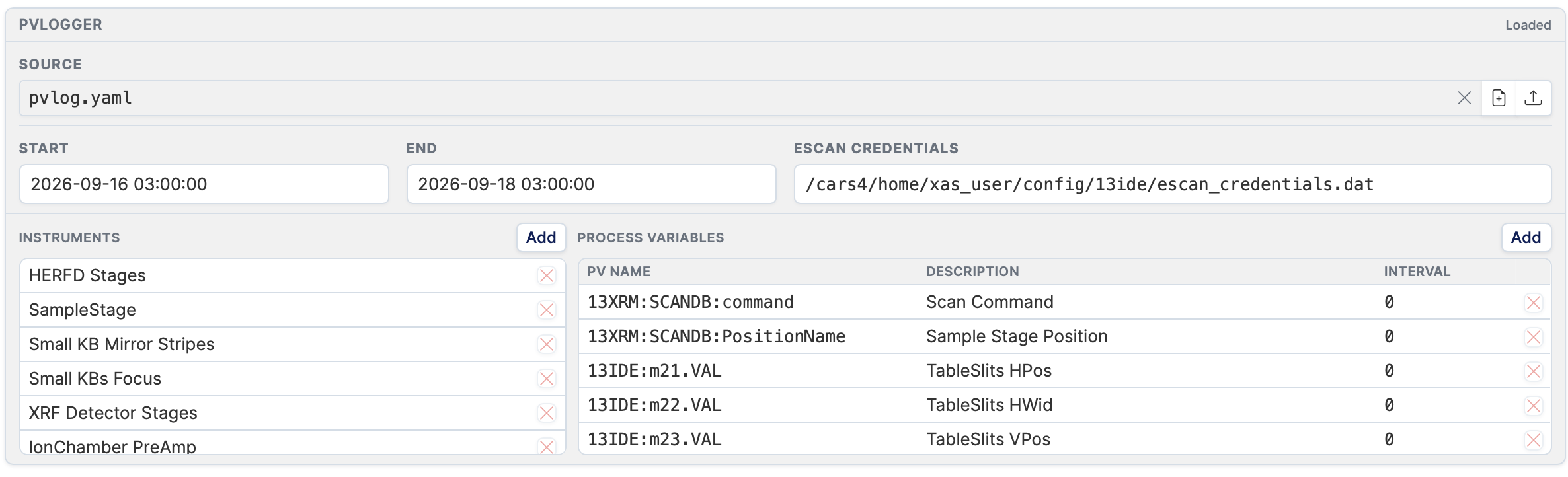
Loading a file
You have three options for loading a PVLogger configuration:
1. Use a template
Click the Source dropdown to select a pre-configured template for your beamline/technique. Templates are YAML files maintained by beamline staff and cover common PV sets for each station.
2. Upload a file
Click Upload YAML to select a .yaml or .yml file from your computer. The file will be uploaded to the uploads directory and loaded into the editor.
3. Create a new file
Click Create new to start with a blank YAML file. The file is created in the uploads directory and named after the ESAF number (pvlog_<esaf>.yaml).
Editing the configuration
Once a file is loaded, the editor shows three sections.
Time window
| Field | Format | Description |
|---|---|---|
| Start datetime | YYYY-MM-DD HH:MM:SS |
When to start logging PVs. |
| End datetime | YYYY-MM-DD HH:MM:SS |
When to stop logging PVs. |
| EScan credentials | File path | Path to the EScan credentials file on the beamline system. |
Instruments
The instruments panel lists all instruments defined in the configuration.
- Click Add instrument to append a new instrument entry.
- Each instrument can be edited inline.
Process variables
The PVs panel lists each process variable to be logged.
| Column | Description |
|---|---|
| PV name | The EPICS process variable name (e.g. 13IDA:m1.RBV). |
| Description | Human-readable label for this PV. |
| Interval | Logging interval in seconds. |
Use the row action buttons to remove individual PVs.
Saving
When you are done editing, you have two save options available via the save button:
| Option | Description |
|---|---|
| Save as queue copy | Saves the file to the uploads directory as pvlog_<esaf>.yaml. This is the file that will be used during processing. Does not overwrite the source template. |
| Overwrite source | Overwrites the original source file (template or uploaded file) in place. Use with caution if the source is a shared template. |
The saved file path is shown next to PVLog file in the detail view.