Adding an Experiment to the Queue
Once you have configured the data path, PVLogger file, acknowledgments, and DOI options for an experiment, click Add to Queue to submit it for processing.
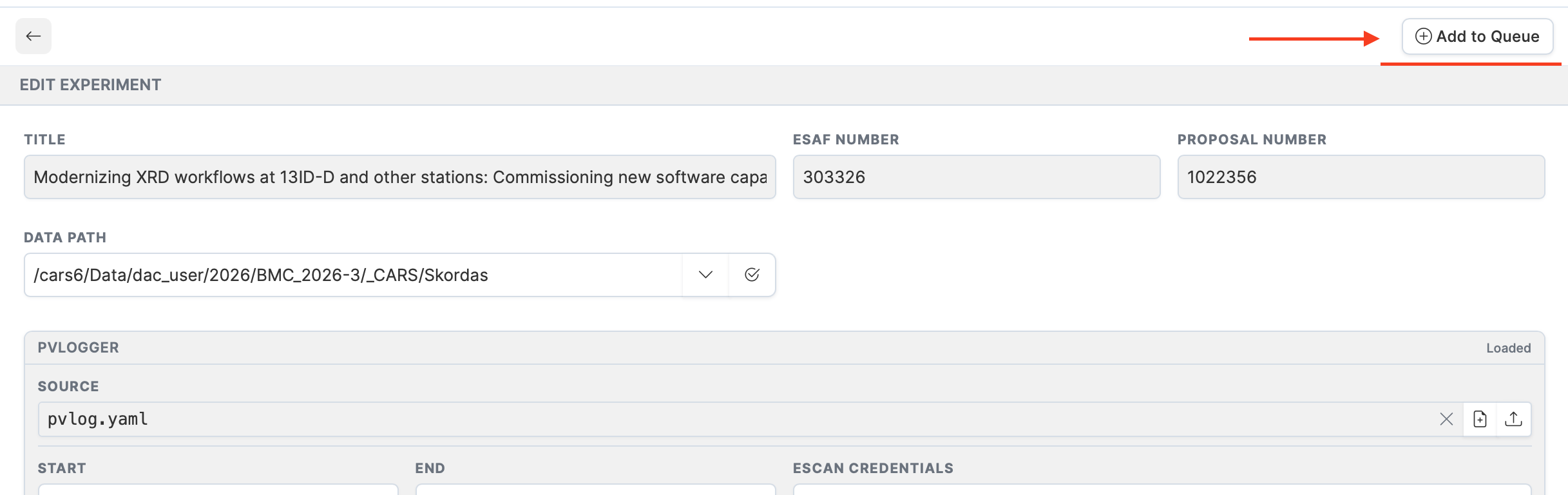
What happens
- The experiment's current status is saved internally.
- The experiment status is updated to Pending.
- A queue entry is created containing:
- The ESAF number
- The configured data path
- The PVLogger YAML file path (if set)
- DOI creation flags
- Selected acknowledgment IDs
- The dashboard refreshes and the experiment row shows the Pending badge.
A confirmation message at the top of the screen tells you whether the experiment was queued successfully or if there were any warnings.
What gets processed
The queue entry is picked up by an external processing job that handles:
- Folder creation — Creates the directory structure at the specified data path.
- DOI minting — Registers a SEES DOI and/or APS DOI if requested.
- Globus/Nextcloud links — Generates collection data links for the experiment.
- PVLogger deployment — Places the YAML configuration file in the correct location on the beamline system.
Once processing completes, the experiment status changes to Processed.
Checking queue status
The experiment's status badge on the dashboard reflects where it is in the workflow:
| Status | Meaning |
|---|---|
| New | Not yet queued. |
| Pending | In the queue, awaiting processing. |
| Processed | Processing complete. |
| Error | Processing failed — contact beamline staff. |
For a full description of all statuses, see the Dashboard page.